DoberMoney · iPhone
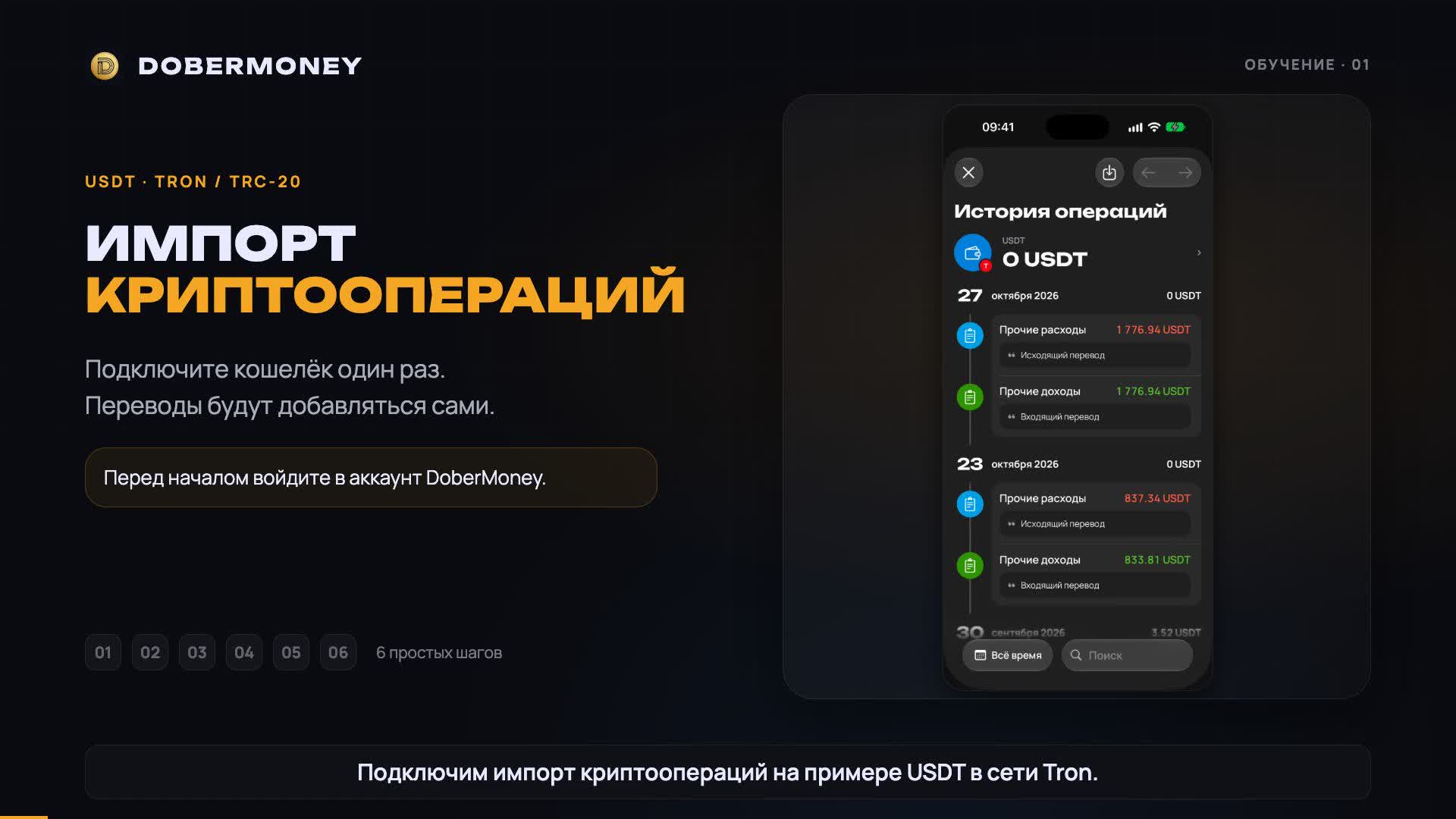
Auto import of crypto transactions
Paste your wallet's public address — DoberMoney will load your history and keep adding new transfers automatically.
Create a USDT account
Sign in to your DoberMoney account. In Overview, find Your accounts and tap Create. Name the new account and choose USDT as its currency. Then tap Connect in the Crypto wallet row.
Paste your wallet address
Paste the public address of your wallet. This tutorial uses Tron / TRC-20. The network is detected automatically; check it and wait for the balance to appear. You only need the public address.
Choose history and confirm both steps
Choose how much transaction history to import; the video selects Last year. Tap Connect, then tap Create on the account form. Both confirmations are needed for a new account: connecting the wallet alone does not finish creating it.
Check the imported history
Wait for the history to load, then open the account and check incoming and outgoing transfers. Loading can take a few minutes; the wait is shortened in the video. New transfers appear automatically. Connecting a wallet does not require a subscription.